Katin Images Travel Photography

Travel Photos, Travel Photography Tips and Software

Tag: Luminar AI

  • Luminar Neo Update 1.0.6

    Luminar Neo Update 1.0.6

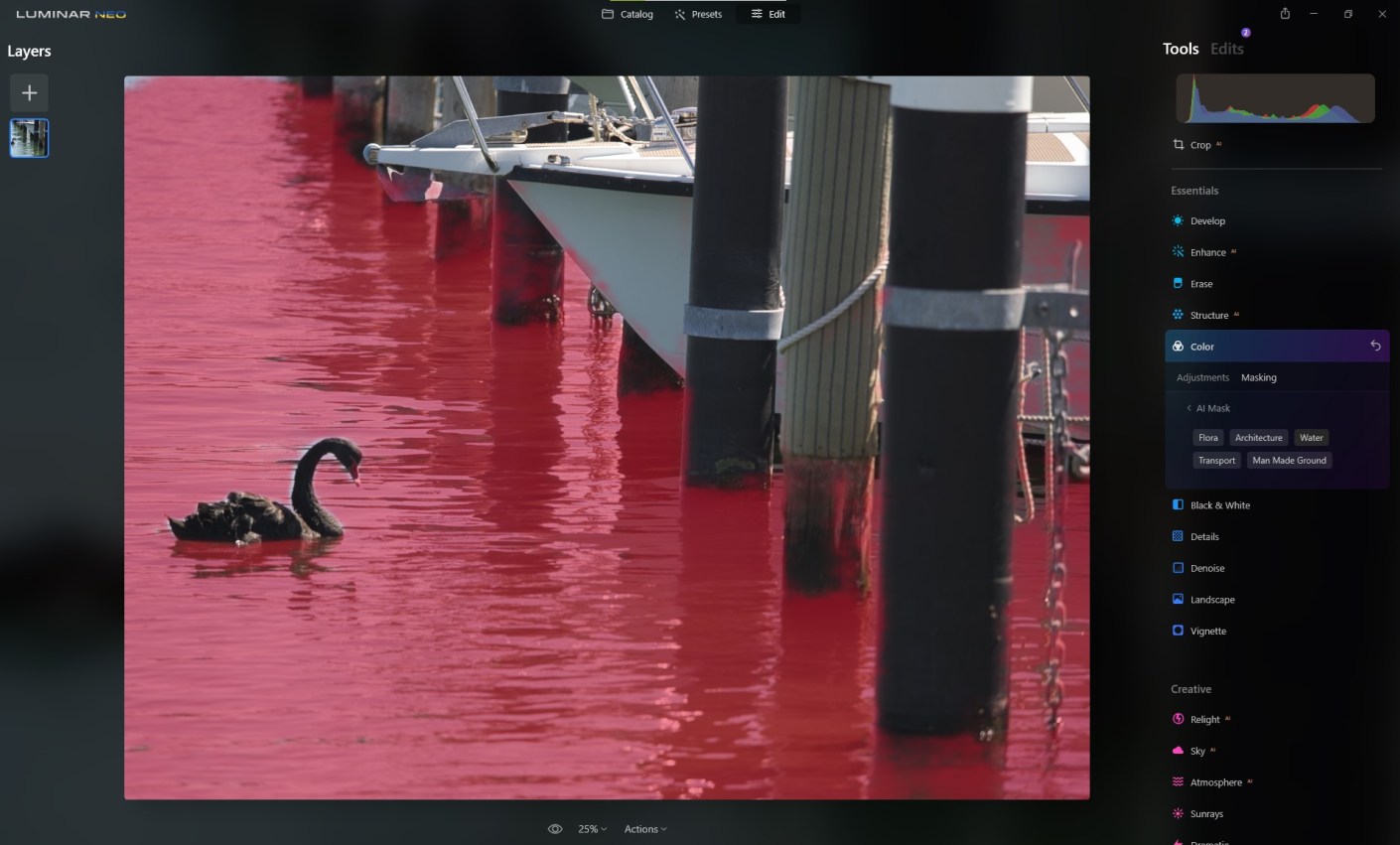
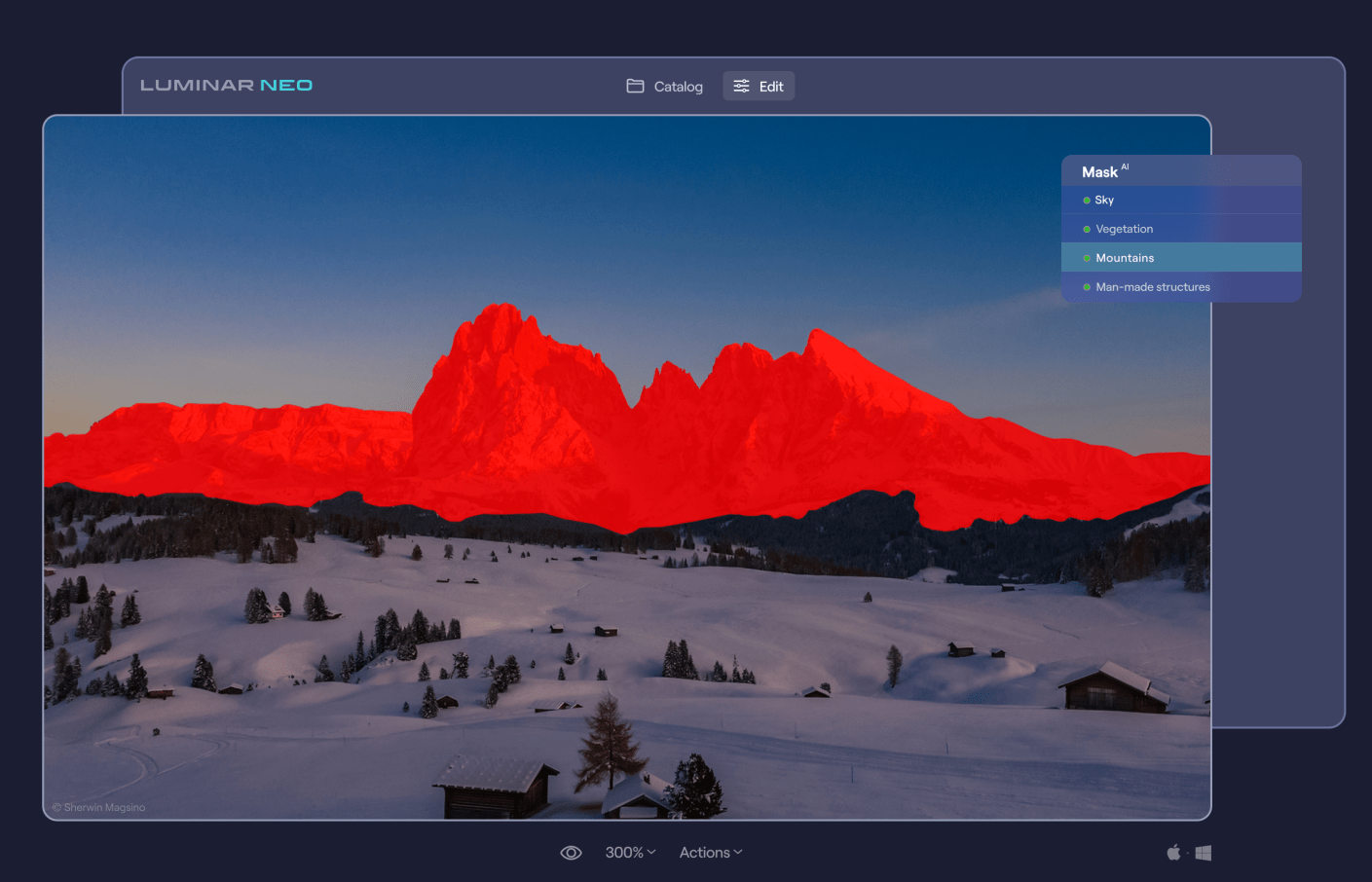
    Skylum has released a new update to Luminar Neo. The 1.0.6 update includes Mask AI and Histogram Let’s check it out:. Mask AI The major feature of this update is the long-anticipated Mask AI technology. The powerful neural network behind Mask AI detects up to 9 separate elements in a photo: people, skies, architecture, transportation, water, flora, mountains, natural ground, and artificial ground. What’s more impressive, is that you can automatically mask the desired area with just one click of a button. The AI will find the desired area and mask it up for you, without needing to spend time fussing over the details with a masking brush. After applying a tool to the masked area, you can easily copy and paste the adjustments to other images, and the mask will apply adjustments only to the same masked area of the other image – be it a sky, a building, a person, and so on. On top of that, you can use the manual Gradient and Radial masks. Plus, the new interface makes it easier and more enjoyable to work with masking. Histogram The histogram is a tool that can be a great help while correcting colours or adjusting exposure, and it’s is now available for. A histogram is a graphical representation of the tonal values of your image. In other words, it shows the number of tones of a particular brightness found in your photograph, ranging from black (0% brightness) to white (100% brightness). It’s a great tool that will help you produce well-balanced images. Now you can press the J hotkey to toggle clipping indicators on and off and see clipped pixels. To coincide with this update Sklylum have Neo on special ‣ One-time purchase: Luminar Neo 2 seats instead of 1 for US$79 ‣ 1-year subscription Luminar Neo 2 seats instead of 1 for US$59. ‣ And a special offer for those who have already had Skylum products: Luminar Neo 1 seat for $54 plus free Film Grain textures. You can access these here

  • Luminar Neo Update 1.0.4 and Help Ukraine

    Luminar Neo Update 1.0.4 and Help Ukraine

    You got to hand to those guys at Skylum! They are working in war zone in the Ukraine, in case you didn’t know, and somehow with all the horrible things going on around them they managed to put together the latest update for Luminar Neo. If you haven’t yet bought Neo then check out the following pieces I’ve done Luminar Neo The Game Changer and Travel Beyond with Luminar Neo additional you go here to learn about Luminar AI another Skylum product. Purchasing any of Skylum’s software helps support Ukraine in their struggles against Russia. Go here for that.
    You can also read more about helping at https://skylum.com/blog/act-now-save-ukraine-defend-democracy-24

    Anyway, what’s the latest update for Neo got?

    Well this is not an extensive list but the main points are:

    Use Smart Objects in Luminar Neo as a Photoshop plugin

    Connect more smoothly to Luminar Share

    Get better visibility with a more distinct color for masking

    Sync and load an image in single image view and see the correct aspect ratio

    Work with Iris Flare on large images

    Log in through a Google, Facebook, Apple ID, or Microsoft account without launching in trial mode (windows only)

    Remember purchasing any of Skylum’s software helps support Ukraine in their struggles against Russia. Go here for that.

  • Travel Beyond with Luminar Neo

    Travel Beyond with Luminar Neo

    02/02/2022 UPDATE THIS OFFER HAS NOW EXPIRED BUT YOU CAN STILL GET LUMINAR AI AT A REALLY GOOD PRICE USING THE LINKS BELOW.

    The big release of Luminar Neo comes up in February.

    So if you haven’t yet pre-ordered your copy you have another opportunity to buy before then at discounts up to 66% off on Luminar Neo and get this, LuminarAI and Aurora HDR.

    They are calling it the “Travel Beyond” offer and it also includes the some great template packs with their software in bundles or separately. The sale starts on January 26, 2022 (Australia Day for us Aussies) and ends: January 31, 2022

    I haven’t been able to show you everything about Neo yet but here’s some images below to show what else there is:

    Portrait Background Removal AI

    This looks terrific. The ability to change backgrounds in portraits with just a couple of clicks has great potential for portrait photographers

    Portrait Background Removal AI

    Mask AI

    One click masking of objects that have been identified by the software. Sounds crazy!

    Mask AI

    Luminar Share

    Luminar Neo has pretty easy way to share images from the desktop software to your smartphone.

    Luminar Share

    So the offers in USD are as follows:

    Luminar Neo offer:

    1 seat:

    Luminar Neo + 1 Free Pack – 30% discount: $69

    Luminar Neo + LuminarAI + 1 Free Pack – 45% discount : $98

    Luminar Neo + LuminarAI + Aurora HDR + 1 Free Pack – 61% discount: $108

    2 seats:

    Luminar Neo + 1 Free Pack – 25% discount: $89

    Luminar Neo + LuminarAI + 1 Free Pack – 41% discount: $128

    Luminar Neo + LuminarAI + Aurora HDR + 1 Free Pack – 56% discount: $138

    You need to go here for this offer

    If you haven’t got LuminarAI or Aurora (HDR) yet then they have this offer:

    1 seat:

    LuminarAI + 1 Free Pack – 52% discount: $47

    LuminarAI + Aurora + 1 Free Pack – 66% discount: $67

    LuminarAI + Luminar Neo + Aurora HDR+ 1 Free Pack – 61% discount: $108

    2 seats:

    LuminarAI + 1 Free Pack – 50% discount: $59

    LuminarAI+ Aurora HDR + 1 Free Pack – 64% discount: $79

    LuminarAI + Luminar Neo + Aurora HDR + 1 Free Pack – 56% discount: $138

    You need to go here for this offer

    These are pretty big discounts which when you consider Neo is due our next month are very generous.

    So what are you waiting for?

  • Luminar Neo The Game Changer

    Luminar Neo The Game Changer

    As you may or may not know I’m an affiliate for Skylum who make some great editing software including that of Luminar AI – go to the link below for more on that.

    I wouldn’t promote them if I didn’t use and like their software.

    Well, they are releasing a new editing software called Luminar Neo that I think is a game changer. It’s aimed at the photography enthusiast, semi pro or pro who wants to have complete control but also want some of the more mundane tasks done with one click.

    As a comparison Luminar AI is aimed at those photographers who really want to edit their photos quickly but at the same time want to be able to tweak.
    Some (certainly not all) of the features are removal of dust spots, relighting, sharing to your mobile device, background removal, portrait bokeh which you can see on one of the links below in Luminar AI, and what I’m about to show you, removal of powerlines in one click.

    So if we go into an image and then click on edit followed by erase. Now we have a drop down menu and second from the bottom is “Remove Powerlines”. Click on that and watch the magic.
    While you’re watching let me show you another tool that I have a demo for. Again click on the image then edit and then “Relight”. Another menus appears where you can control the level of brightness for both the foreground and background and then adjust the depth of the adjustment from the front to the back. Easy!

    It’s not due for release until February 2022 but at the moment they are taking preorders for around US$60 for a single licence which is a $20 saving. But it’s only available for the next 2 days. Go to Luminar-neo before it’s too late.

    For more on Luminar AI go here. To see the portrait bokeh specifically in action on Luminar AI go here.

  • Luminar AI Update 4 and Portrait Bokeh

    Luminar AI Update 4 and Portrait Bokeh

    If you been sitting on the fence about buying this editing software, then this could be a game changer for you.

    Luminar AI’s fourth update gives us Precise Horizon Control in Sky AI, Improved Textures with visual preview and here’s the real deal breaker, Complete focus control with Portrait Bokeh AI.

    So what does that all mean? Well let’s get the minor upgrades out of the way:

    Precise Horizon Control in Sky AI

    A new on-screen tool makes it even easier to control positioning of new skies when performing sky replacements with the Sky AI tool. In the Sky Orientation controls three sliders have been replaced by a single, intuitive Horizon Position control which makes accurate sky alignment easier for any of us.

    Improved Textures with visual preview

    You can now visually browse Textures in the dropdown list just like you can with Sky Selection and instantly have an idea of what your result might look like.

    Now let’s talk about Portrait Bokeh AI

    For those that are not familiar with the term Bokeh, it’s the blurriness you find in the background of a photo. For more about this go to https://en.wikipedia.org/wiki/Bokeh
    Traditionally, creamy bokeh has always required expensive cameras and lenses. And has always been the main domain of full frame cameras.
    There are ways of creating it with mirrorless and crop frame camera. And I know the iPhone and Android mobiles have software that can create it. Plus, you can go to Photoshop and create it too.

    But Luminar AI’s Portrait Bokeh AI is something else.

    Using artificial intelligence, Luminar AI can recognize people in a photo – even groups of people, and people posed in unusual positions. And then will automatically generate bokeh to a certain point, then it’s entirely controlled by you with a single amount slider. This allows you to create beautiful background blur in seconds – adding realistic and dreamy 3D bokeh effects to your portraits.

    Lets’ take a look at it in practice.

    Here’s one I took on a shoot that the client wanted me to shoot these employees in front of this tree. On the review of the pictures, they wanted a blurry background. Well, they were really to close to get the a strong bokeh effect. And I wasn’t about to retake it a few days later, so I did attempt it in photoshop and gave up. I just don’t have the time, attention to detail and to be totally honest the enthusiasm to spend an hour or 2 on one image.

    So, let’s see how we go with Portrait AI

    Go into edit mode then scroll down to the portrait section. The first section is portrait AI

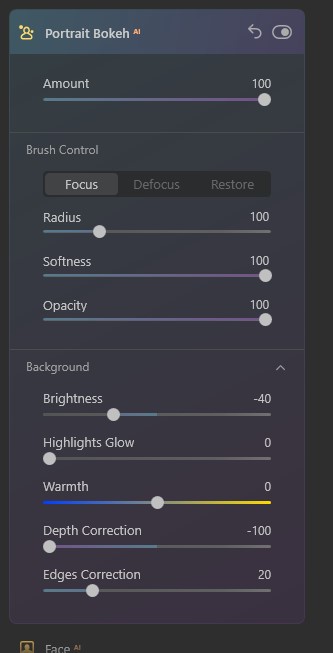
    Once you open that, you get straight into the first and important slider “amount”. Now you can see by moving this, you get a good control of the bokeh. Lets’ slide right over and see what happens. Pretty good.

    The way it works is that it automatically masks humans (and just so you know it doesn’t work on anything else – yet).
    So you are able to get some control of the mask with the brush control but I’m going to go down to the background section and slide the depth correction over to see if it helps blur the bottom of the planter box that is still in focus.

    Now we can go back to brush control and tidy it up.

    Boom done.

    To me that’s more than impressive that’s something every photographer has wanted in their armour for decades.

    So, if you are still not sure about buying this software Luminar AI Portrait Bokeh should convince you. And that to the many more AI updates they have planned and you’ll have a great product to make your editing life so much easier.

    Go to Luminar AI to grab it and make your life a lot easier when editing photos.

  • Luminar AI Update 3 Reminder

    Luminar AI Update 3 Reminder

    This is your last chance to get a special deal on the this easy to use software. Go to Luminar AI Update 3 for more info on the software.
    See below to go get it.

    Luminar AI Update 3. Click on the image for the discount.

    If you don’t have a copy of this software – now is the time to get it at a 25% discount.

    Go to July 1 – 9th sales.
    That’s right you’ve only got today and tomorrow to get LuminarAI at this discount.

  • Luminar AI Update 3

    Luminar AI Update 3

    There is now a third free update to LuminarAI that brings new benefits to the AI-powered editing tool.

    These are the changes you should find useful especially if you use it a lot to improve the skies in your images.

    Picture-perfect horizons with the improved SkyAI tool

    In Update 3, there’s been significant improvements to the SkyAI tool:

    Better Sky Detection
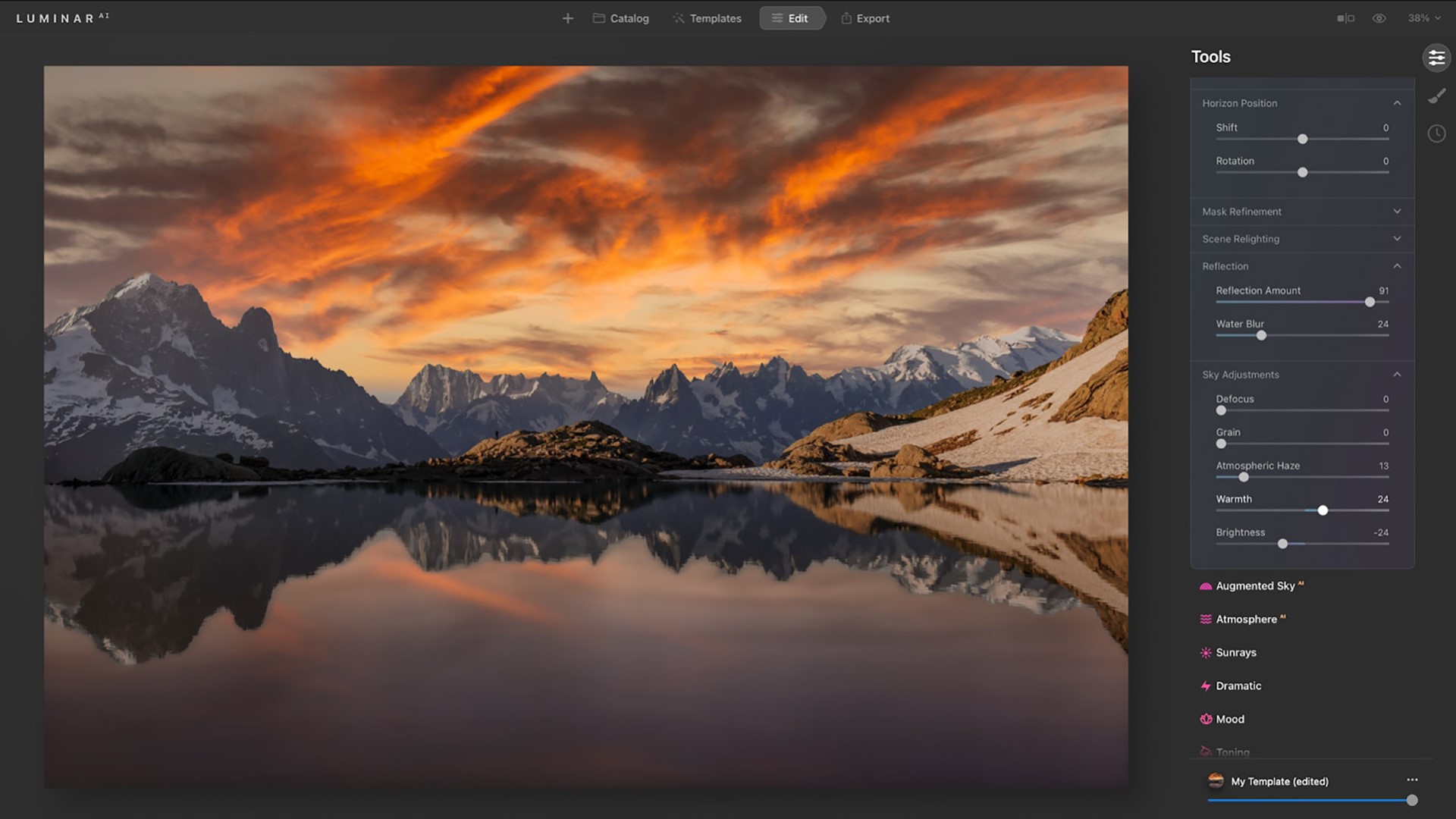
    Once a new sky is selected, SkyAI now uses improved horizon detection to place it more accurately in the scene. The new sky is automatically adjusted to better match the perspective of the photo. Refined edge detection and masking are used to better integrate the new sky for a more organic effect.

    Horizon Position & Sky Orientation

    When replacing the sky in previous versions of LuminarAI, it could be difficult to realistically align the new sky with its reflection in the water. This was because the Vertical Offset slider controlled the alignment of both the sky and the water reflection, moving them in the same direction.

    Now, you can replace the sky and set the desired position of your horizon line thanks to the Shift slider in the Horizon Position section of the SkyAI tool. If the horizon is tilted, you can take advantage of the Rotation slider.

    You can then use the Vertical Position slider in the Sky Orientation section to further adjust your image. This slider controls the position of the new sky in both the sky and water areas but moves them in opposite directions in relation to the horizon line until you get the ideal match between your new sky and its reflection.

    Better Reflections

    The Sky Adjustments section in SkyAI is where you can easily adjust the new sky to refine Atmospheric Haze, Warmth, and Brightness. These controls let you precisely adjust the mood of the sky and match it to your scene… and now to your reflections too! With the Sky Adjustments tools, you can precisely colour grade and tone your photos with great flexibility.

    Plus, you can now add a realistic Water Blur to the reflections in your image. This lets you better match reflections when the water surface has waves or ripples.

    Better Relighting

    Improvements in colour accuracy create a more natural effect when the new sky is used to automatically relight the entire scene, including reflections. Three relighting controls allow you to fine-tune the lighting to fit your creative vision.

    As soon as you replace the sky, the water is instantly relit. This gives you the ability to replace a daytime sky with an evening sky or a simple sky with a dramatic one.
    LuminarAI calculates the correct reflection in the water and matches lighting across the whole image.

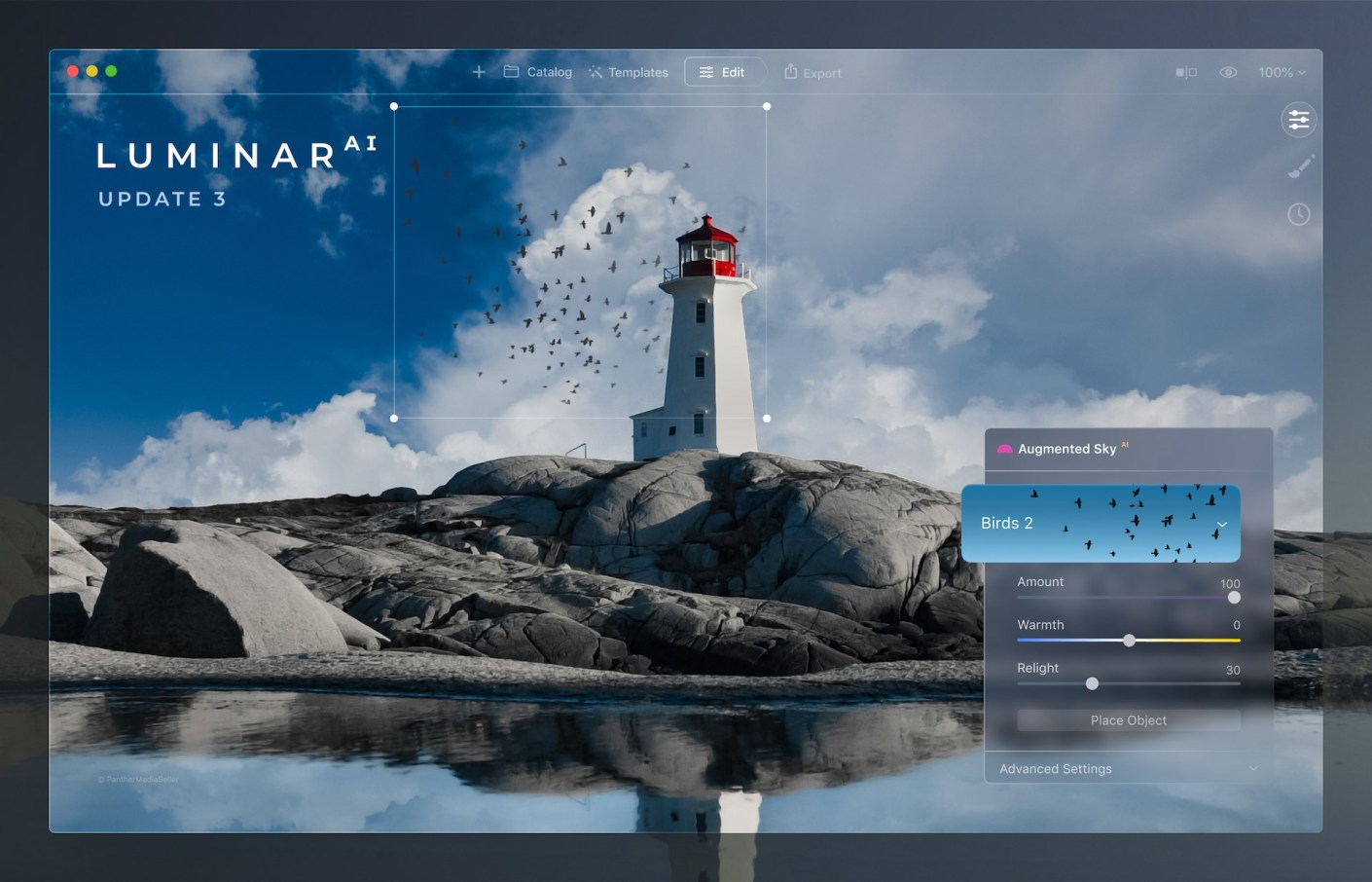
    Fantastic worlds in your skies with Augmented SkyAI
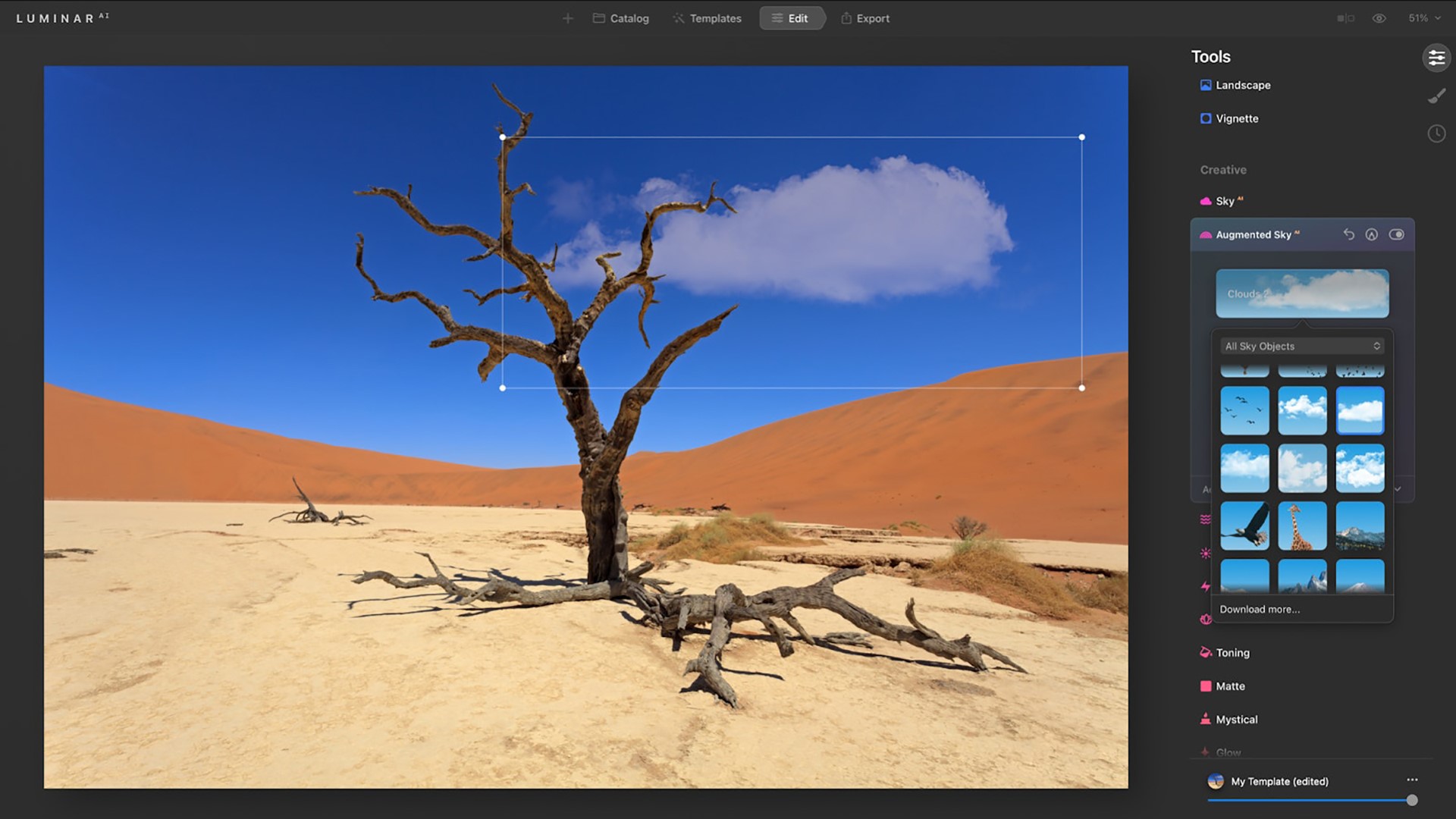
    You can now instantly preview Sky Objects you add to the custom folder. Select any Sky Object in the visual browser to instantly preview it in your scene.

    Just be aware that augmented Sky Objects will not be reflected in the water.

    Convenient Template browsing

    Templates are a great way to explore creativity. LuminarAI scans each image and can recognize more than 7,000 types of objects. It then offers editing suggestions based on image contents. For example, LuminarAI can recognize a dog in a photo and suggest Templates especially for pets. You can use these suggestions to finish your images quickly or as a starting point to get up and running.

    Faster application launch time

    This one is a real deal breaker for me.
    There’s been improvements to the core engine that loads when you launch Luminar. So you should see reduced launch times when you startup the application.

    This will let you get to editing sooner.

    Improved tools

    • Dodge & Burn tool — Easily paint highlights and shadows in your photos to enhance the mood. And with the new Softness slider, you can subtly refine the edges of the affected area for a more natural result.
    • Erase tool & Clone tool — Both of these tools offer non-destructive editing to easily remove unwanted objects or blemishes. Thanks to the Undo and Redo commands that are now available not only on macOS but also on Windows, there is no need to start over if you make a mistake or change your mind. Just undo the brushstroke and make fine adjustments.

    Browsing Purchased Templates

    In LuminarAI Update 3, you can now access your purchased Templates visually. Templates in the purchased tab are now organised in a grid so you can easily find and use them. Plus, you can use the “Get More Templates” button to find new Templates directly in LuminarAI.

    Seen enough?
    But wait there’s more:

    • New support for Apple hardware and image format
    • Support for HEIC image format
    • Bug Fixes and Minor Enhancements

    Finally if you don’t have a copy of this software – now is the time to get it at a 25% discount.

    Go to July 1 – 9th sales.

    So, yes, you’ve only got to July 9th to get LuminarAI at this discount.

    Go get it!

  • Photo editing with Luminar AI

    Photo editing with Luminar AI

    I’ve been a Lightroom user for many years and in fact I was probably one of the early adopters.

    Over time you become a bit complacent when use the same product. I was starting to think that it was time to look at another way to edit and organise my images that would improve the end result and at the same time improve my productivity.
    So, when I first heard of Luminar a year or so ago, I bought it and have been playing around with it ever since.

    So I was about to post some info about Luminar 4 when Skylum introduced Luminar AI.
    Whilst Luminar 4 is an editing program with some AI (artificial intelligence) built into it, Luminar AI is an AI program with a large selection of editing tools. So for the last 3 months or so I’ve been playing around with it and I’m impressed.

    Let me tell you where I’m coming from. I did a lot of editing but nowhere the amount I should do. I have RAW images that are sitting on my hard drive that, apart from the odd one, go back 10 years plus waiting for me to get off my arse and process!
    You see, I have a love/hate relationship with editing and find that I’m going down a rabbit hole with it. I try and keep out of Photoshop and will try to use just Lightroom but it’s not always enough.
    So when Luminar AI came along It seemed like a way of reducing my edit time (and consequently inspiring me to start processing my back catalogue). Enough of that.

    Firstly, let me clarify that the info I will provide is for Luminar AI specifically the latest update 2. Secondly, I’m an affiliate so if you decide to buy through this link and use the code katinimages
    I’ll get a small payment.

    Over the next few weeks (could even be months) I’ll post a more articles on my experience and opinion.

    So today is about comparing Luminar with Lightroom, as so many of us are Lightroom users.

    One thing you need to consider is the difference in terms of price. Luminar is a once off payment for the software not a subscription.
    Having said that new versions – as opposed to updates, are an additional cost.

    I originally had Luminar 3 which I can still use but when Luminar 4 was released I had to pay for it, admittedly at a discounted rate as I was an existing owner (approx. 25%).

    How much is it? In USD it’s currently $89.00 (which you can get USD$10 off using this link and the code katinimages).
    Adobe’s photography plan is USD$9.99 per month which is approx. $120 per year but you do get Photoshop as well as Lightroom plus a few other apps like LR Mobile and Cloud storage.
    Having said that it’s not necessarily one or the other. It can be both as Luminar can be use as a plugin in both Lightroom and Photoshop.

    So, the differences between LR and Luminar AI are briefly as follows:

    Luminar is a great AI software with a large selection of editing tools with some limited organising tools
    Lightroom is an organising software with some really good editing tools

    To compare their organising ability let’s look at this chart

     LR*LAI*Comment
    FoldersY8Y9L AI is easier to see
    Albums/CollectionsY9Y9 
    KeywordsY8NNAComing in a future update of L AI?
    CaptionsY10NNAComing in a future update of L AI?
    Copyright MetadataY10NNAComing in a future update of L AI?
    Individual Image EditY3Y8Editing a single image in LR is possible but difficult because of its import requirements. It’s easy to do in L AI.
    Smart PreviewsY8NNAA real differential if you edit images away from a remote drive
    Import toolY7Y9L AI Import facility is very easy and quick due to it’s simplicity
    Export toolY9Y7L AI is simple to use. LR gives you lots of preinstalled presets and the ability to create your own as well.
    Export to 3rd PartiesY9Y3L AI is Limited to SmugMug and 500PX and one image at a time
    Network CatalogueNNAY8This is handy for me it means I can access the catalogue across my network from any computer that has L AI installed

    There are other differences that are not listed above but these are the main ones that I’ve encountered.

    The keywords, captions and copyright is a big one for me. If I don’t edit an image in Lightroom then I have to enter these details into the platform I have exported to. In my case that’s SmugMug or WordPress. Alternatively once you finish editing you can export to your hard drive and then import to Lightroom for captions, keywords and other metadata like copyright.
    I thought that using Lightroom to enter the metadata and then using Luminar as a plug in would be a workaround but unfortunately when you bring back the image to Lightroom it’s all gone. Likewise, flag, star or colour ratings are not retained either.
    This means to use Luminar I’ve had to change my workflow.
    With Lightroom my workflow was

    1. Rate
    2. Import with copyright, and basic keywords
    3. Enter keywords, title and captions
    4. Edit
    5. Export

    With Luminar AI I now:

    1. Import
    2. Rate
    3. Edit
    4. Export to SmugMug*
    5. Enter keywords, title and captions

    OR

    1. Import to Lightroom
    2. Rate (if I want to)
    3. Export

    Note. I don’t enter copyright. This is because the OMD1 MKII that I have has a facility for copyright to be entered on every image.

    *The Keywords, Caption and title can be entered during export to SmugMug or 500PX if you want to avoid Lightroom. The beauty of using Lightroom is you can batch export to both SmugMug and 500PX

    In summary, on the one hand, using Luminar AI has saved me some time as I now don’t rate every image and only enter keywords, title and captions to images that have been exported. On the other hand it’s restriction of only one image at a time can be exported to SmugMug is more time consuming.
    That’s my way of handling the logistical differences between Lightroom and LuminarAI and may not work for everyone

    Below is a video brief summary of Luminar AI’s editing power:

    In the next post I’ll review what Luminar AI is really all about and that’s it’s editing tools.
    If you want to try for yourself then click on the this link and use the code katinimages to get a US$10 discount.